 Explanation:
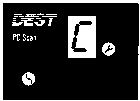
Text cannot be transmitted due to a parity error.
Explanation:
Text cannot be transmitted due to a parity error.
The display panel is located on the front of the PC Scan. There are six indicators that light in different combinations to get the status of the PC Scan.
When you first turn the PC Scan on, all of the indicators and the number 8 are illuminated during the self-test. When the PC Scan is turned off, the indicators are not visible.
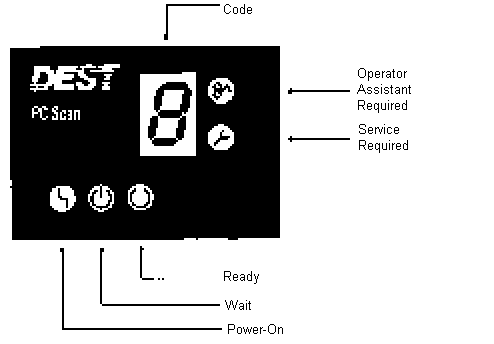
The Power-On, Wait and Ready indicators are located in the lower-left portion of the display panel and indicate whether or not the PC Scan is ready to read pages.
The Code indicator in the center of the panel provides you with specific information on functions the PC Scan is performing or what kind of operator assistance or service is required.
The Operator Assistance Required and Service Required lights indicate that the PC Scan requires attention before it can continue to operate.
The color of the indicator lights is also functional: green for Power-On and Ready, yellow for Wait, and red for indicators displayed when the PC Scan requires attention.
The following are illustrations of indicators displayed during normal operation.
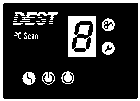 The 8 code and all of the indicators are illuminated when the power
switch of the PC Scan is turned on. The indicators remain on while the PC Scan
performs a self-test to make sure all of its functions are operating properly
The 8 code and all of the indicators are illuminated when the power
switch of the PC Scan is turned on. The indicators remain on while the PC Scan
performs a self-test to make sure all of its functions are operating properly
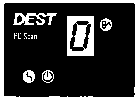 When your PC Scan has completed its self-test, a 0 code is illuminated
along with the indicators shown in this illustration. This display indicates
that the PC Scan is waiting for software to be loaded.
When your PC Scan has completed its self-test, a 0 code is illuminated
along with the indicators shown in this illustration. This display indicates
that the PC Scan is waiting for software to be loaded.
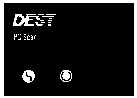 After your PC Scan software program is loaded (see software user’s
guide), the two green lights are illuminated as shown in the illustration. These
lights indicate that the PC Scan is ready to read pages. While a page is being
read, the green Ready light is replaced temporarily by the yellow Wait light.
After your PC Scan software program is loaded (see software user’s
guide), the two green lights are illuminated as shown in the illustration. These
lights indicate that the PC Scan is ready to read pages. While a page is being
read, the green Ready light is replaced temporarily by the yellow Wait light.
When the PC Scan cannot read pages, the Operator Assistance Required indicator comes on until the condition is corrected. A code number that identifies the condition is also displayed.
The following are example of Operator Assistance Required Conditions that may be observed on the display panel of the PC Scan.
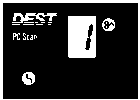 Explanation:
A page is jammed inside the PC Scan, or the page inserted was longer that 14
inches.
Explanation:
A page is jammed inside the PC Scan, or the page inserted was longer that 14
inches.
Action: Refer to your PC Scan software user’s guide for recommended action.
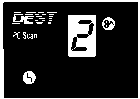 Explanation:
The text page being read contains nontyped material or a typestyle not easily
recognized by the PC Scan. The reading rate for the page is very slow.
Explanation:
The text page being read contains nontyped material or a typestyle not easily
recognized by the PC Scan. The reading rate for the page is very slow.
Action: The display panel will clear after the page is read. Refer to you PC Scan software user’s guide for procedure to cancel page and other helpful hints.
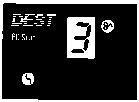 Explanation:
Communication with the PC Scan was disrupted while a page was being read.
Explanation:
Communication with the PC Scan was disrupted while a page was being read.
Action: Refer to your PC Scan software user’s guide for recommended action.
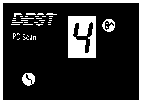 Explanation:
The switches on the back of the PC Scan are set incorrectly.
Explanation:
The switches on the back of the PC Scan are set incorrectly.
Action: Turn the PC Scan off. Set all of the switches on the back of the PC Scan to the correct setting as shown in the installation section of this guide. Turn the PC Scan on and load PC Scan software.
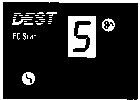 Explanation:
A memory error has been detected on the PC Scan.
Explanation:
A memory error has been detected on the PC Scan.
Action: Turn the PC Scan off and back on. If it completes the self-test, load PC Scan software. If the error condition persists, contact your authorized DEST dealer for service.
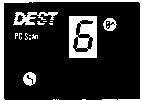 Explanation: A data error was detected while software was being loaded
into the PC Scan’s memory.
Explanation: A data error was detected while software was being loaded
into the PC Scan’s memory.
Action: Turn the PC Scan off and back on. If it completes the self-test, load PC Scan software. If it does not complete self-test, reinstall PC Scan software on your computer, then turn on the PC Scan. If it completes self-test, load PC Scan software. If the error condition persists, contact your authorized DEST dealer for service.
The Service Required indicator is on when the PC Scan detects a problem that requires service. This type of problem is detected by the PC Scan’s self-test diagnostics when the PC Scan is first turned on or while it is waiting to be used.
The following are examples of Service Required Conditions that may be observed:
Explanation:
Text cannot be transmitted due to a parity error.
Action:
Refer to your PC Scan software user’s guide for recommended action.
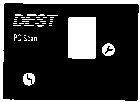 When a code other than C is displayed, note the code letter and turn the
PC Scan off. Contact your authorized DEST dealer for service.
When a code other than C is displayed, note the code letter and turn the
PC Scan off. Contact your authorized DEST dealer for service.